Browser Games Not Loading on Mobile: 10 Fixes
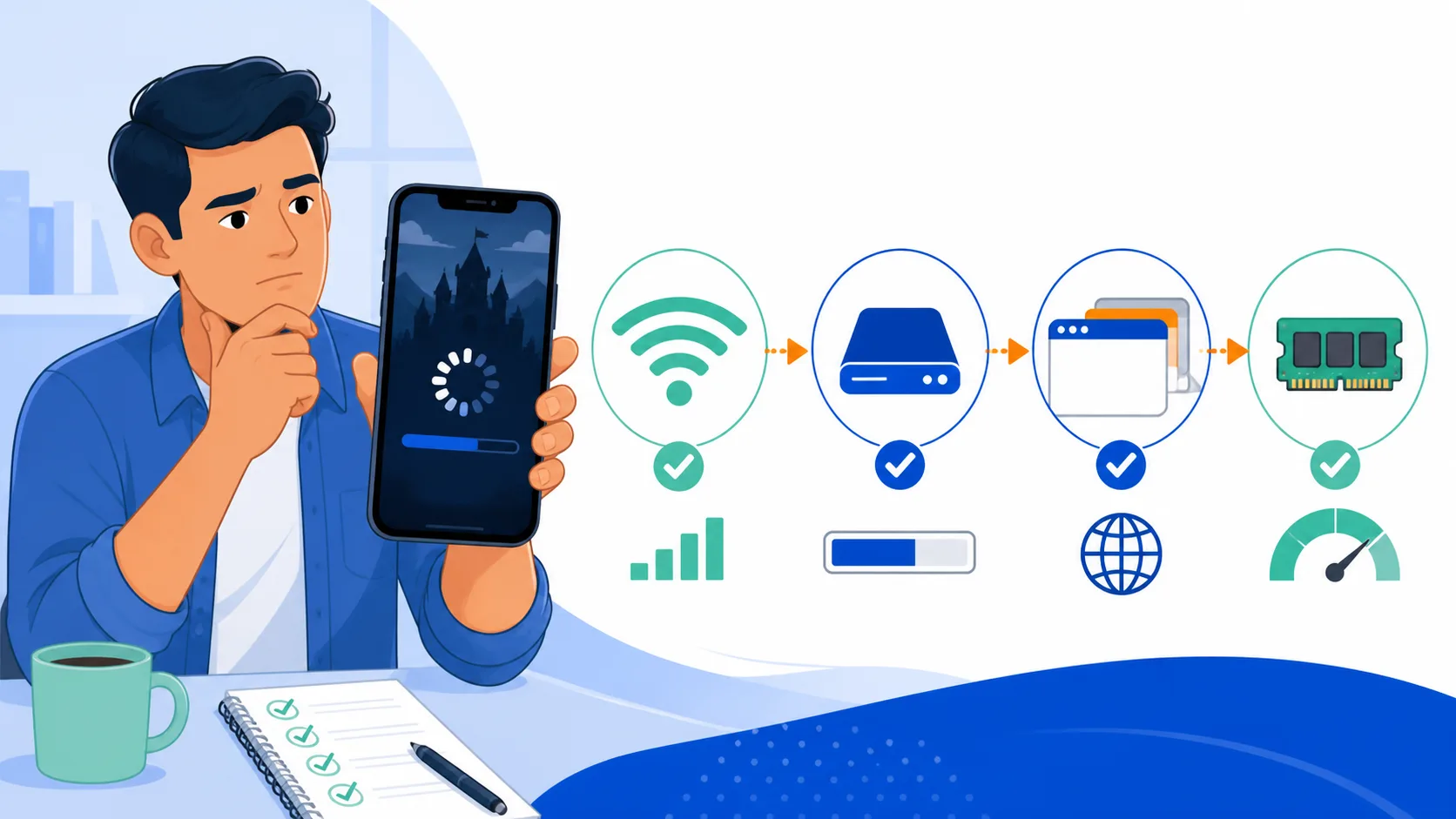
A browser game that works on a laptop can stall, show a black screen, lose sound, or reload unexpectedly on a phone. The cause is not always the game itself. Mobile browsers operate with tighter memory limits, stricter media policies, variable network conditions, and aggressive battery management. A useful diagnosis starts by identifying the stage at which the problem occurs instead of trying every setting at once.
Before changing anything, note whether the game fails before its first screen, freezes after play begins, or only has trouble with sound or saves. Those symptoms point to different parts of the browser. The following checks move from low-risk fixes to steps that may affect stored data.
1. Confirm That the Browser Is Current
Start with a current version of Chrome, Safari, Firefox, or Edge. Modern browser games may depend on WebGL, WebAssembly, audio APIs, or JavaScript features that older releases handle differently. On Android, updating Chrome also updates components used by many web experiences; on iPhone and iPad, browser updates often arrive with iOS updates.
Do not enable experimental flags as a first fix. They can change graphics or memory behavior in ways that make the problem harder to reproduce. A normal, supported browser configuration gives you a better baseline.
2. Test the Connection, Not Just the Signal Icon
A strong Wi-Fi symbol does not guarantee that every game file can be downloaded. Move between Wi-Fi and mobile data if both are available, then reload once. If the game works on one connection, a network filter, captive portal, DNS issue, or unstable router may be interrupting a required request.
Avoid repeated refreshes while a large first load is still progressing. A browser game has no separate installer, but it still downloads scripts, images, audio, data, and sometimes a WebAssembly module. Restarting the page can restart part of that work.
3. Close Other Memory-Heavy Tabs and Apps
Phones share memory across the browser, other tabs, and background applications. When memory pressure rises, the operating system may discard a game tab or force it to reload. Close video streams, large social feeds, maps, and other games, then reopen the browser game in a single tab.
This is especially relevant when the title screen appears but the page closes during a scene change. Compressed assets expand after decoding, so a game can use far more memory than its transfer size suggests.
4. Reload Once and Watch Where It Stops
After closing other tabs, reload the page once. Notice whether it stops at the same percentage, on the same image, or after the same action. A repeatable stopping point suggests a missing asset, damaged cached file, or scene-specific memory problem. A failure that moves around is more consistent with an unstable connection or general resource pressure.
If the page provides a loading indicator, give it enough time to finish. Some games compile code or decode audio after the visible download completes, and a slow device can make that final stage appear inactive.
5. Check Available Device Storage
Browsers need free space for cached assets, temporary files, and local save data. A nearly full phone can prevent a large game from completing its first load even when the network is fast. Remove unneeded downloads or apps if the device reports very little free space, then restart the browser.
Free storage is not the same as working memory, so this step will not solve every crash. It does remove one common reason that caches or local databases cannot be written correctly.
6. Temporarily Disable Content Blocking for the Page
Privacy extensions, DNS filters, and content blockers can stop a script or asset host that the game expects. Temporarily allow the game page, reload it, and test again. If that fixes the problem, re-enable the blocker and add the narrowest site exception available rather than disabling protection everywhere.
Only do this for a site you trust. A successful test shows that a request was being filtered; it does not prove that every blocked request was necessary or safe.
7. Check Whether Private Browsing Changes the Result
Open the same page in a private or incognito tab. If it works there, the normal browsing profile may contain stale cached files, an extension conflict, or site data from an older version. Private browsing is a diagnostic comparison, not proof that the server or game is faultless.
Remember that private sessions may restrict or discard storage. They are useful for testing a load problem, but they are a poor place for a long playthrough if you expect progress to persist.
8. Clear the Cache Before Clearing Site Data
If the private-window test works, clear cached files for the site and try the normal window again. Cache and site data are not the same. Cached files are copies of resources used to speed up loading; site data can include settings, databases, and local game saves.
Clearing all site data may delete progress stored by the browser. Before doing it, use an in-game export or cloud-save option if one exists. Our guide to browser game save data explains why a save can be tied to one browser and device.
9. Check Orientation, Audio, and Input Separately
A black or apparently frozen screen can sometimes be an input or display issue. Rotate the phone if the game expects landscape mode, tap once to allow audio playback, and check whether an on-screen keyboard or browser toolbar is covering a control. Bluetooth keyboards and controllers can also change which input the game receives.
Sound failures deserve their own test. Mobile browsers commonly require a user gesture before audio begins. If the game runs but remains silent, tap its start or unmute control before treating it as a loading failure.
10. Compare Another Supported Device or Browser
Finally, try a second current browser or another supported device. If the failure occurs only on one phone model, collect the operating-system version, browser version, available storage, and the exact step that triggers it. That information is more useful to a site owner or developer than “it does not work.”
Compatibility varies by game. A desktop-focused export may require more memory or use controls that do not translate well to touch. If the game page lists supported devices, treat that information as part of the diagnosis.
A Safe Order for Troubleshooting
The practical order is: update the browser, verify the connection, close other tabs, reload once, check storage, test blockers, compare private browsing, and only then consider clearing site data. This order protects local saves while eliminating the most common causes first.
If you want to understand what happens between opening a URL and reaching the first playable frame, read how HTML5 games run in a browser. You can also return to Mopoga to try another browser game and determine whether the problem affects one title or the whole device.