Why HTML Games Run Differently Across Devices
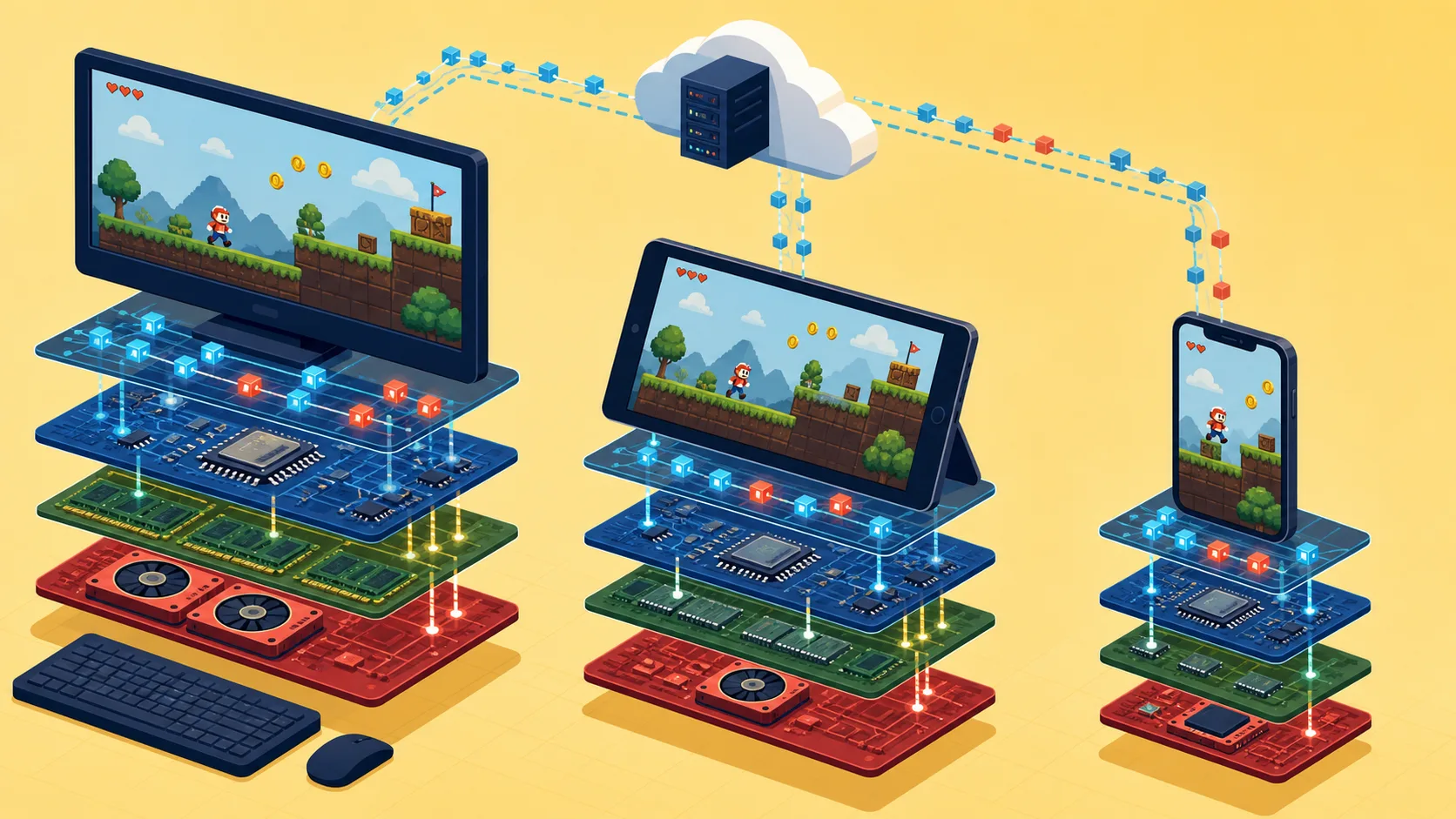
Two people can open the same HTML game and get very different results. One reaches the title screen in seconds; the other sees a long loading bar, stuttering animation, missing audio, or a tab that reloads without warning. The difference is rarely explained by internet speed alone.
A browser game passes through several stages before it becomes playable: files are transferred, code is parsed or compiled, images and audio are decoded, memory is allocated, graphics are sent to the GPU, and input and storage APIs are initialized. A bottleneck at any stage can look like “the game is slow.” Understanding the stages makes troubleshooting more precise.
Separate Loading Problems from Runtime Problems
First identify when the failure occurs.
If the game is slow before the first usable screen, investigate network transfer, caching, decompression, compilation, and asset decoding. If it loads normally but becomes sluggish during play, investigate frame time, memory growth, scene complexity, background work, and device temperature. If only saves or sound fail, the issue may involve storage permissions or autoplay policy rather than overall performance.
This distinction prevents ineffective advice. Clearing a cache might help a damaged download, but it will not fix a scene that exceeds the phone’s available memory.
Download Size Is Only the First Cost
“No download” normally means no separate installer. The browser still fetches HTML, scripts, images, audio, data files, and sometimes a WebAssembly module. A repeat visit may reuse cached files, while a first visit has to retrieve them from the network.
Connection speed is only one variable. Latency affects the many small requests some games make. Server distance and content-delivery configuration affect response time. Privacy tools or extensions may block a required third-party resource. A service worker or stale cache can also combine files from different versions after an update.
For diagnosis, inspect the browser’s network panel and ask:
- Which request is slow or failing?
- Is the browser downloading the same large file again?
- Are resources coming from the expected domain and over HTTPS?
- Does the loader wait for the entire game when it only needs the first scene?
A progress bar should reflect completed work. An animation with no connection to actual transfer or initialization makes it difficult to distinguish a slow device from a stalled request.
Compressed Files Expand in Memory
Transfer size and memory use are different measurements. A compressed image can occupy considerably more memory after it is decoded into pixels. Audio may require decoded buffers, and an engine can allocate a large WebAssembly memory region in addition to its downloaded module.
This helps explain why a game may load on a desktop but cause a mobile browser to discard the tab. Phones generally operate with tighter memory limits, and the browser shares resources with other tabs and applications. A game that retains assets from old scenes may become unstable only after several minutes of play.
Publishers should monitor memory across a representative play session, not only at the title screen. Developers can unload assets that are no longer needed, reduce oversized textures, stream or defer audio, and avoid loading every chapter at startup.
JavaScript and WebAssembly Do Different Jobs
Many web games are written in JavaScript. Others are exported from engines that compile substantial parts of the project to WebAssembly. WebAssembly is a compact compilation target that works alongside JavaScript and browser APIs; it is not a graphics engine and does not bypass browser security.
Large modules still need to be fetched, compiled, and instantiated. Streaming compilation can reduce waiting when the server sends the correct WebAssembly MIME type. CPU-intensive work can sometimes move to a Web Worker so that the main thread remains responsive, but communication and data transfer between threads also have costs.
The useful question is not whether a game “uses HTML5” or “uses WebAssembly.” It is which tasks occupy the main thread, how large the startup bundle is, and whether the engine configuration fits the intended devices.
Graphics Depend on More Than Browser Support
Canvas can handle custom 2D drawing, while WebGL uses the device’s graphics processor for accelerated 2D and 3D rendering. Current browsers broadly support WebGL, but performance still depends on the GPU, driver, resolution, thermal limits, and the amount of work each frame requires.
A high-resolution display can increase the number of pixels the game renders. Transparent effects, large textures, particle systems, and frequent scene redraws can add GPU cost. At the same time, game logic, layout calculations, or garbage collection may be consuming the CPU. What appears as a graphics problem may therefore originate elsewhere.
Measure frame time rather than relying only on an average frames-per-second number. Short spikes can make controls feel unreliable even when the average looks acceptable. Test busy scenes, menus, dialogue transitions, and long sessions because each can stress a different part of the system.
Mobile Browsers Add Their Own Constraints
Responsive CSS can make a page fit a phone screen, but it cannot automatically make a game mobile-compatible. Touch targets, orientation changes, virtual keyboards, browser navigation gestures, and the absence of hover all require design decisions.
Mobile devices also change performance as they heat up or enter battery-saving modes. Switching apps may suspend timers or audio. Returning to a backgrounded tab may require the game to restore its graphics or audio state. A build that works for five minutes on a cool device can behave differently during a longer session.
Compatibility statements should therefore be specific. “Designed for recent mobile browsers; keyboard-only sections are identified” is more useful than “works on every device.”
Audio Usually Needs a User Gesture
Browsers commonly restrict autoplay with sound. A game may load its audio correctly but remain silent until the player taps a Start button. If initialization happens at the wrong time, music may fail even though the rest of the game works.
Test the first interaction, volume controls, tab switching, phone locking, and resume behavior. The game should not queue several delayed effects and play them together when focus returns. An on-screen sound control also gives players a clear way to confirm whether audio is muted or unavailable.
Storage and Privacy Settings Affect Saves
A browser game may use localStorage, IndexedDB, cookies, or a server-side account. Local data usually belongs to one browser profile. Private browsing, site-data deletion, storage restrictions, or a device change can remove or isolate it.
Before telling players to clear site data, warn them that doing so may delete local progress. If troubleshooting only requires a fresh network response, clearing cached files is not the same as deleting all storage. Where possible, provide an export function or server save for progress that users cannot easily recreate.
A save confirmation should occur after the write succeeds. If the game depends on a remote save, it should distinguish a completed upload from a pending or failed request.
A Practical Diagnostic Order for Players
When a game fails, start with low-risk checks:
- Reload once and note whether the failure occurs at the same point.
- Confirm the browser is current and that the device has adequate free memory.
- Close other demanding tabs or applications, then retry.
- Check whether content blocking or a strict privacy setting is preventing a required resource.
- Try another supported browser to determine whether the problem is browser-specific.
- Clear cached files for the affected site only if a stale or incomplete asset is likely.
- Delete site data only after confirming how saves are stored or exporting progress where possible.
- Report the device, operating system, browser version, failing step, and any visible error message.
Private browsing can be a useful comparison because it changes extensions, cookies, and stored site data, but a successful private session does not prove that the server is healthy. It only makes a local session or configuration issue more likely.
What Publishers Should Record
A useful bug report needs more than “black screen.” Ask for the page URL, device model, operating system, browser and version, connection type, approximate time, and the last visible loading message. If possible, collect console and network errors without asking users to share unrelated browsing data.
For each release, test:
- a first visit with an empty cache;
- a repeat visit with cached assets;
- a normal save and restore;
- interrupted and resumed audio;
- low-memory conditions on a representative phone;
- touch, keyboard, and pointer input where claimed;
- an update from the previous cached version.
These checks reveal different failure modes and provide evidence for precise compatibility notes.
Performance Is a Chain, Not a Single Score
HTML games run differently across devices because the browser is coordinating a chain of systems with different limits. Network transfer, decoding, compilation, memory, CPU work, GPU rendering, input, audio, and storage all contribute to the experience.
Good troubleshooting identifies the stage that failed before recommending a fix. Good publishing does the same: measure realistic sessions, disclose known limitations, protect local saves, and avoid guarantees that cannot be tested. That approach gives players useful next steps and gives developers evidence they can act on.
Technical References
- MDN game development resources: https://developer.mozilla.org/en-US/docs/Games
- MDN WebGL overview: https://developer.mozilla.org/en-US/docs/Web/API/WebGL_API
- MDN WebAssembly concepts: https://developer.mozilla.org/en-US/docs/WebAssembly/Guides/Concepts
- MDN IndexedDB guide: https://developer.mozilla.org/en-US/docs/Web/API/IndexedDB_API/Using_IndexedDB
- web.dev WebAssembly performance patterns: https://web.dev/articles/webassembly-performance-patterns-for-web-apps