Browser Game Controls Not Working? Check Focus, Keyboard, and Touch Input
Browser game controls not working? Don't panic yet! We know that browser games are convenient because there is usually nothing to install, but that also means the game has to share your keyboard, touchscreen, browser window, and sometimes controller with everything else the browser is doing. When input suddenly stops responding, the cause is often much simpler than a broken game. A lost click, an accidental shortcut, a browser gesture, or an overlay can make perfectly functional controls feel dead. Before declaring your keyboard cursed, work through the common causes below.
Browser Game Controls Not Working? Start by Checking Game Focus
Browser game controls not working can be an indication of a number of minor issues. One of the easiest problems to miss is browser focus. Your keyboard sends input to whichever part of the page is currently active. If you clicked the address bar, a search box, another tab, or even a chat panel beside the game, your key presses may no longer be reaching the game itself.
Click directly inside the game window and test a basic movement key again. If the game has a “Click to Play,” “Start,” or similar screen, interact with that first. Switching to another application and then returning to your browser can sometimes leave the page waiting for another click before it starts responding again.
This is particularly worth checking if the game worked normally a few seconds ago and then suddenly stopped after you opened another menu or tab. A game losing focus is basically the browser equivalent of someone saying, “Sorry, were you talking to me?”
Keyboard Shortcuts Can Conflict With How HTML5 Games Run
Some keys already have browser-level jobs before an HTML5 game receives your input. Space may scroll a page, Tab moves between interactive elements, function keys can trigger browser features, and combinations using Ctrl, Alt, Command, or the Windows key may belong to your browser or operating system.
Games can intercept many normal key presses, but they cannot always override every browser or system-level shortcut. If pressing Space suddenly scrolls the page instead of making your character jump, for example, the page may have lost focus or the game may simply not be handling that particular key correctly.
Check the game’s control settings and try assigning the troublesome action to a more ordinary key. You can also close browser search boxes, translation tools, password-manager panels, or extensions that react to keyboard commands. When four different programs all claim the same shortcut, your poor keyboard has effectively been handed four managers and that'll really mess with the game's input.
Touchscreen Gestures and Browser Game Controls Not Working
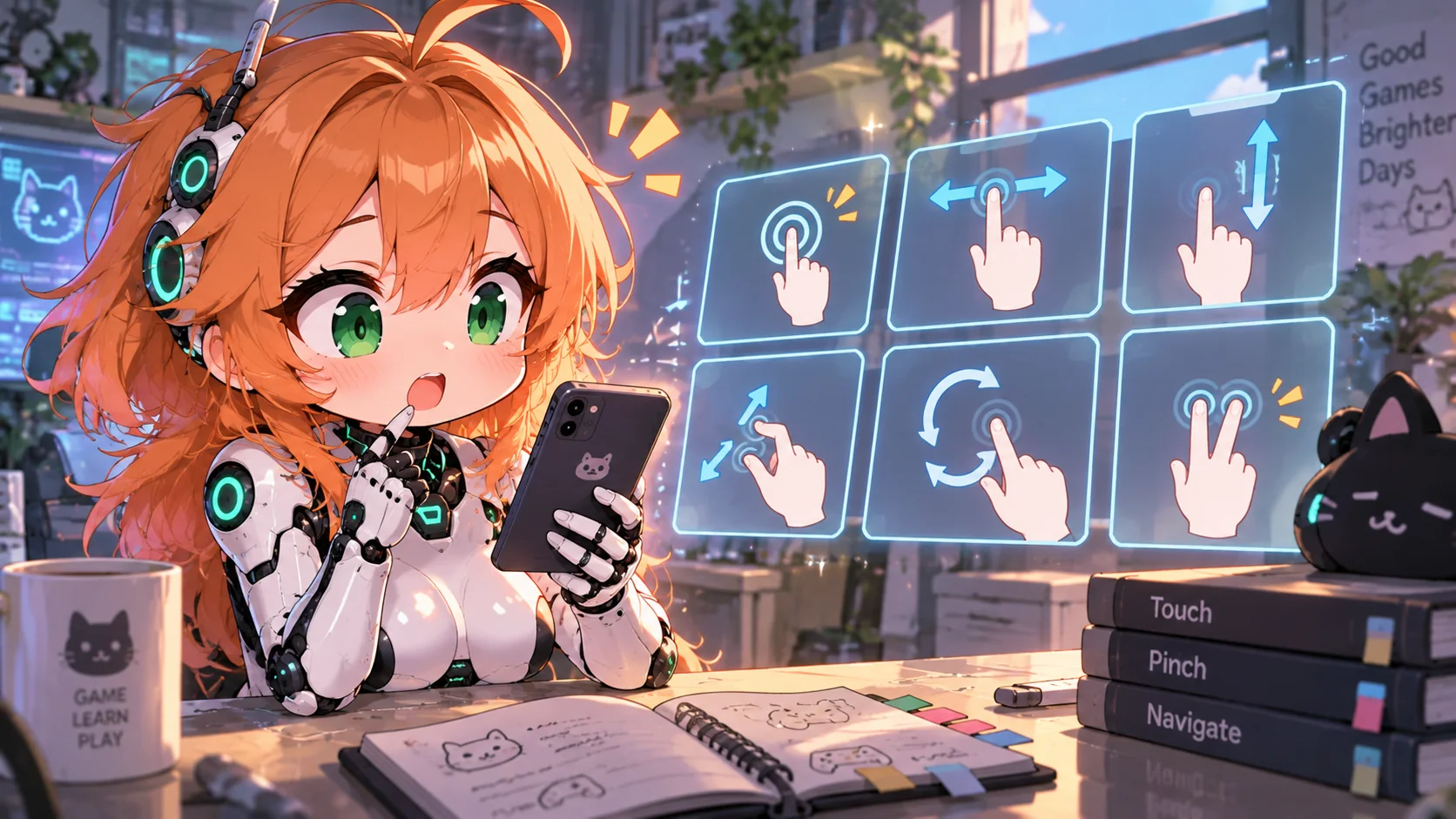
Mobile browsers have their own ideas about what your fingers are trying to accomplish. A swipe on a virtual joystick may be interpreted by the game as movement, but the browser might see the same gesture as an attempt to scroll, zoom, or navigate the page.
If dragging a control moves the webpage instead of your character, tap once inside the game before trying again. You can also rotate your phone into the game’s intended orientation and back, especially if the controls appeared before the device finished adjusting its layout.
Check for gesture navigation, accessibility zoom, one-handed modes, floating accessibility buttons, or gaming features that alter touch behavior. Controls placed near the edge of the screen can be especially vulnerable. A virtual joystick hidden beneath a floating button technically still exists; it's just not as helpful when you can't use it.
Fullscreen Can Change How HTML5 Games Run
Fullscreen mode can sometimes improve input simply because it removes browser interface elements from around the game. This is useful when clicks near the edges are unreliable or certain keys keep interacting with the webpage instead of the game.
Enter fullscreen using the game’s own button if one is available. Browsers normally require you to actively click or tap something before a webpage can enter fullscreen, so games cannot usually throw you into it without warning. Some operating-system shortcuts will also remain reserved even while the game occupies the whole display.
If the controls stop working after entering fullscreen, exit it and test again in a normal browser window. Switching back and forth once can also fix games that calculated their interface incorrectly when the screen size changed. Sometimes the sophisticated technical repair procedure really is “turn fullscreen off and on again.”
Check for Overlays Blocking Input
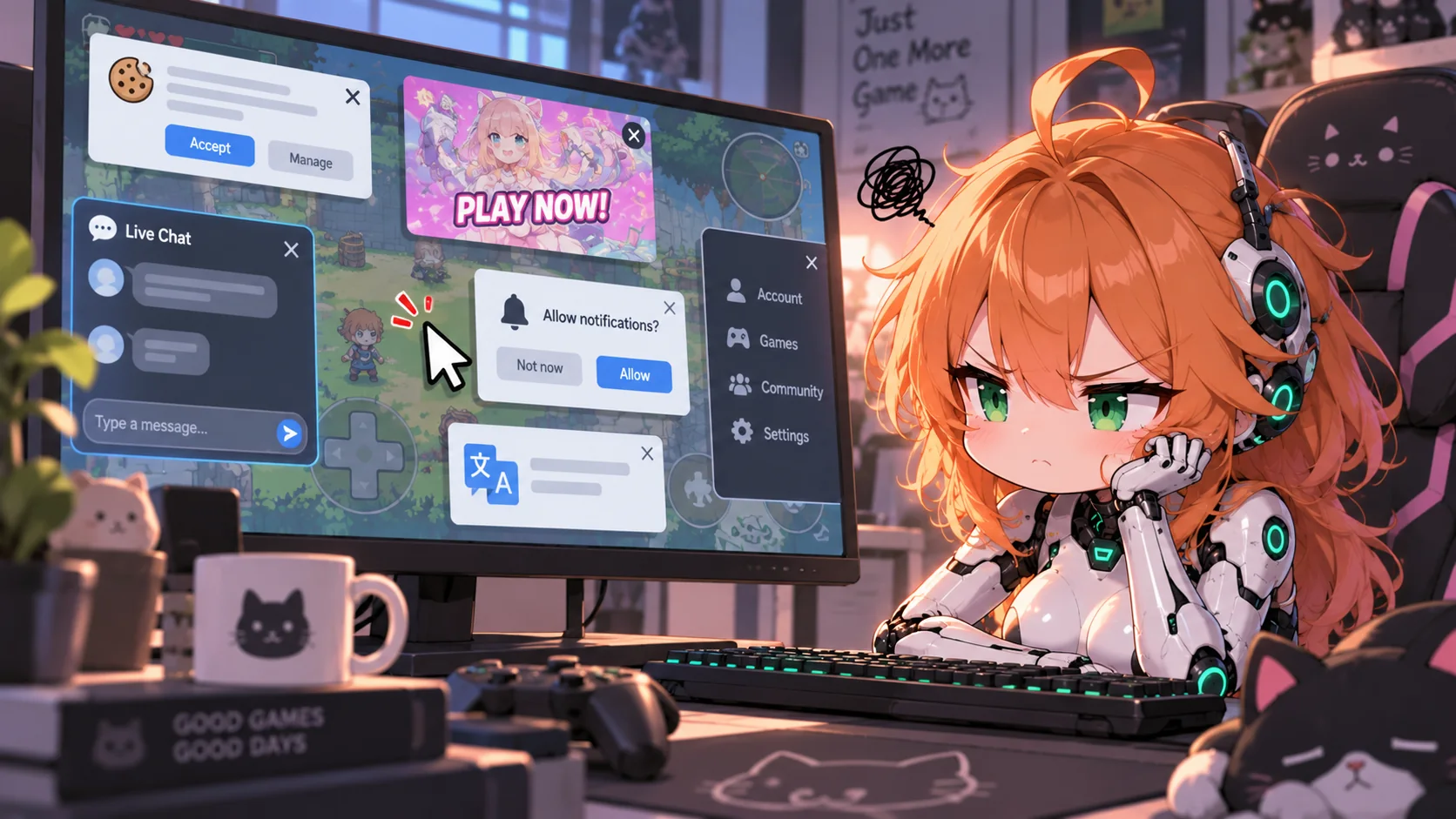
An element sitting on top of the game can block mouse clicks or touchscreen input even when it looks mostly transparent. Cookie notices, chat widgets, advertisements, permission prompts, translation panels, floating menus, and account pop-ups are common examples.
Notice a specific dead spot on your screen? Look at what's hovering nearby. Shut down anything overlapping the game and try clicking there again. On phones, even a tiny chat head can block a massive chunk of your controls. Give these quick tricks a shot before doing anything crazy:
- X out of any ads, chat boxes, or floating icons.
- Tap or click right back into the game window.
- Jump out of full-screen mode and back in.
- Just give the page a standard refresh.
- Turn off any browser add-ons that mess with websites.
If one of these does the trick, you're good—no need to nuke your cookies or wipe your browser game save data. Fixing a game glitch shouldn't mean creating a brand-new headache for yourself.
Browser Game Save Data Can Include Control Settings
A game may store more than progress in your browser. Depending on how it was built, locally stored information can also include remapped keys, controller preferences, sensitivity settings, sound levels, or the position of touchscreen controls.
If that information disappears, the game may quietly return to its default configuration. This can happen after clearing site storage, switching browser profiles, using private browsing, or sometimes moving to a completely different browser. Suddenly Jump is back on Space instead of K, and for ten confused seconds it appears that gravity has won.
Check the control menu before assuming the game itself has stopped accepting input. If your customized layout disappeared, restore the bindings manually and see whether the problem goes away.
Be especially careful with generic troubleshooting advice telling you to immediately delete all cookies and site storage. Some browser games keep local progress there as well. Unless you know your saves are tied to an account or stored elsewhere, start with reversible fixes first.
Controller Support and Browser Game Controls Not Working
Using a controller adds another possible failure point. A browser game must specifically support gamepad input, and the browser must also recognize the connected device. A controller working perfectly in another game does not guarantee that every browser title knows what to do with it.
Connect the controller before loading the game, click inside the game window, and press one of its buttons. Some browsers may not expose gamepad input to a page until the player has interacted with the controller while that page is active. Also check the game’s settings in case controller support needs to be enabled manually.
If nothing happens, reconnect the controller and reload the game. Bluetooth users can test a wired USB connection, while PC players can close Steam, controller-mapping utilities, or other programs that might be interacting with the device. Then test the keyboard. If keyboard controls work normally, you have narrowed the problem down to controller support or its connection, rather than the game’s entire input system.
Embedded Games and Mopoga
Browser-game portals often place games inside a larger webpage rather than making the game itself the entire page. That means navigation bars, account menus, floating interface elements, and embedded frames may all exist around the playable area and occasionally interfere with input.
If a Mopoga game opens inside the site’s player, you can encounter the same situation. If something stops responding, close anything overlapping the player, click directly into the game, and try a larger or dedicated viewing mode if the site provides one.
You can also compare the affected game with another title on the same website. If several games suddenly have the same problem, the browser or surrounding webpage becomes a stronger suspect. If only one title is affected, the issue is more likely specific to that game.
How HTML5 Games Run Makes Troubleshooting Easier
Browser controls sit between several different systems. The game handles one part, while the browser manages focus, shortcuts, fullscreen, touch gestures, and access to devices such as controllers. That is why a seemingly broken control can sometimes have an extremely ordinary cause.
Start with simple tests. Click back into the game, close overlays, check keybinds, reload the page, and compare fullscreen with windowed play. Mobile players should also watch for gestures or floating interface elements stealing touchscreen input.
If the problem remains, isolate it by changing one thing at a time. Try another input method, another game, or another browser. Once you know whether the problem follows the game, website, browser, or device, troubleshooting becomes much easier and considerably less dependent on pressing W sixteen increasingly angry times.